Got questions? We have answers.

Monotonectally reinvent economically sound e-markets whereas distributed collaboration

  • Getting Started
  • Email Design
  • Contact List Management
  • Billing
  • Technical
  • Deliverability
  • Statistics
  • Best Practice

>Do I need to download and install your email marketing software on my PC?

Well, there is no software to download, its web-based software, means you can use it from an Internet browser (like Internet Explorer, Firefox) on any computer with an Internet connection. We know the age of 56K dialup connection is gone, so cheers J

>Tell me in short what is GetBulkMail?

It's a web-based, Do-It-Yourself, email marketing services that provides you with an advance email marketing software to design the emails and good mail servers to deliver it. Hmm…that is real short.

>Your service is used for what?

Duh, good question. Do you need to send catchy email marketing solutions, newsletters, special offers, event invitations, mass email and promotions via email? Then you are at the right place. Go on.

>Do you provide contact list/ database?

We do not Sell/ Rent/ Lease/ Distribute any kind of database/ contact list/ opt-in list.

>How many emails can I send per hour?

By default GetBulkMail send 10000 to 12000 emails per hour. However, it varies depend upon your campaign size.

>Ok, I know, I need an email marketing service, how should I get started with yours?

  • Choose a plan that suits your email marketing need
  • Sing-up with your details
  • Make the payment either online or offline
  • Your email marketing account is ready in short time

Isn't that simple enough to get started now? Choose a plan and signup.

> Will you allow purchased email list?

We allow both subscribed and purchased email list.


> Will my account get suspended after high bounce back? How does that work with you?

We do not have very strict bounce rate policy. However it is better to maintain low bounce for good delivery.


> Am I able to have different send from for each campaign?

Yes. Can use different from address for each campaign.


> Can I have multiple email lists?

No limit on contacts you upload. Our plans are based on number of email send not subscriber list size. You can have multiple email lists.

> How the bounce contacts handled?

GetBulkMail process bounce backs from your list automatically and update the status of the contacts as Bounced. By default your future campaign will not send to Hard Bounce addresses.

> Is GetBulkMail reliable, secure and confidential? Is our data safe?

Your data is stored on industry-standard data servers located with some of world's largest and most reliable ISP's. We don't provide / sell or share email databases. Your database will be 100% safe and secured. Also you can delete/export your list anytime.

> Will I get dedicated IP address?

Plan 75K and above comes with dedicated IP.


> What is the daily email limit?

We support maximum upto 100,000 emails in a day. In higher plan like 2 and 3 million, you get multiple accounts to distribute email volume. Which means upto 200,000 emails in a day.


> What campaign report do i get?

You get the complete email campaign statistics like open rate, bounce rate, link clicked, unsubscribed etc.


> What are the payment method?

Credit Card/PayPal/Bank Wire/skrill/neteller

> Is there a contract to sign?

No contract to sign. You can cancel or change plan anytime.


> How soon will my account be activated after the payment?

The account will be activated short time once your order gets approved.

>How to change password?

After login. In dashboard top right corner you get settings option to change password.

Email Design

>How to insert a Unsubscribe link?

To make the unsubscribe link in GetBulkMail shorter and look
cleaner:

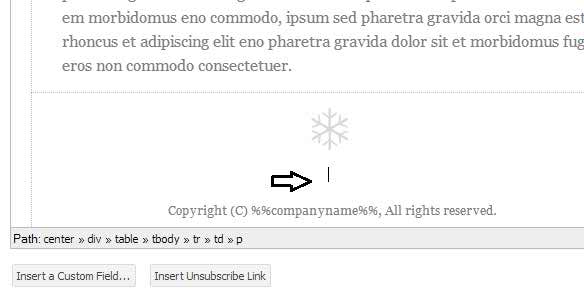
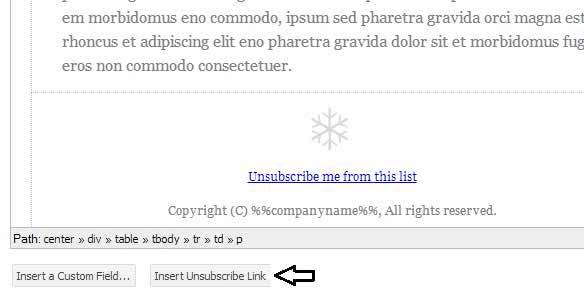
In the campaign editor place the cursor where you want to
insert unsubscribe link and click insert unsubscribe option located below HTML
content editior as shown in the pic.


Unsubscribe


Unsubscribe

and you're done!

>Create your email campaign using templates

The most important part of your campaign is the email you
will send to your contact list. Let's now look at how to create a simple email
campaign by choose a professionally pre-designed email template from those
included in the system. see more:

https://youtu/xPjyRNtYmls

>Create a subscription form for your website

If you want to offer visitors to your web site a way to sigup
to your contact list, you can create a subscription form in the system to add
to your site. You will need to have a little experience with HTML to add the
form to your web site.

To get started, click the "Website Forms" link
shown in the top right-hand corner of the system. This will take you to the
"Manage Website Forms" page. Website forms are special forms that you
can create. You can create website forms to accept contacts, for someone to
unsubscribe, modify their subscription details or send an email campaign to
their friends.

Click the "Create Form" button to create a form.
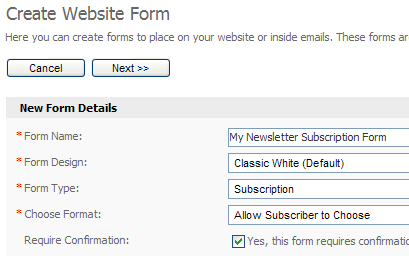
Type in a form name and make sure you choose the "Subscription"
option from the "Form Type" dropdown. If you aren't sure what any of
the fields are, just move your mouse over the help icon next to that field:

http://www.interspire.com/support/kb/images/EMtutorials/agettingstarted_9.gif

Creating a form to accept contacts from your web site is
easy.

Click the "Next >>" button. Depending on
which form options you chose, you may or may not be required to enter more
details. Again, if you are unsure of anything just move your mouse over the
help icon next to the field and read the help text.

Once you've created your form you'll be taken back to the
"Manage Website Forms" page. Simply click the "Get HTML"
link next to your new form and paste that code into your website to add the
subscription form to your site.

>Why are my images not showing when I create a new
template from a file on my computer?

When you create the email template from a local file it
simply grabs the HTML from the file that you are uploading. The images still
need to be uploaded to the server.

In the email editor, just right click on the image (or image
place holders that you can see) and then select insert/edit image option to
upload.

This will then open up the image selection window where you
can then upload the image to your server.

Another way you could do this would be to upload the files
somewhere else on your server and alter the image source url to point to the
full location of the image (http://domain/jpg).

>How do I create a 'Send to Friends' link in my email
campaigns?

To add a 'Send to Friends' link in your email campaigns you
will first need to create a 'Send to Friends' form in the 'Create Website
Forms' section of GetBulkMail .

To do this go to 'Create Website Forms' and select 'Form
Type->Send to Friend'

Continue through the process in the same fashion as you
would create any other form type. Once it's been created, you can now add this
to your emails.

To add the 'Send To a Friend' to your email campaigns you
simply add it in like any other 'Custom Field' and send it out — Simply click
on the 'Insert Custom Field' button on the editor or the link underneath the
editor.

>How do I add video to a mailer?

Using the Source tab of the built-in WYSIWYG editor, you can
view the direct HTML source of the emailer you're adding the video too.

From YouTube for example, you can copy the HTML code from
the box provided. Once you copy this, you can then paste it into the Source tab
at the place you would like it to be.

Once the code has been pasted there, you can click on the
Edit tab to continue adding content until you've finished your mailer.

>Can I use HTML from MS Word?

Microsoft Word uses a proprietary/ non-standard HTML code
while saving any Word document to HTML. Thus, it is not supported by any email
client such as Yahoo, Gmail and so on…

It's good to avoid saving documents to HTML from MS Word. It
won't work.

So what do I do?

1. Use built-in email templates, just customize it to your
needs.

2. Design your HTML template by yourself or employ someone.

3. If you have received any news letter from someone in the
past, just copy the code and reuse it.

>Can I create my own email campaigns or do I need to
use an email template?

GetBulkMail lets you create email campaigns in various ways
depending on how you work.

While GetBulkMail lets you create emails and email templates
using the built in powerful WYSIWYG editor, you can also create them outside of
GetBulkMail using a HTML editor such as Dreamweaver, GoLive, FrontPage and
upload it directly into GetBulkMail .

You can also link to a HTML web page anywhere on the web and
GetBulkMail will retrieve that file and use it as your email.

>How to Setup an Autoresponder

An autoresponder lets you send an email to your subscribers
a specific number of hours or days after they have subscribed to your mailing
list. For example, if John signs up to your mailing list today, you can create
an autoresponder to automatically send a welcome email to him 24 hours after he
subscribes.

Autoresponders are often called the "marketer's dream
tool", and in this article I'll show you how to setup a basic
autoresponder to send an email to your subscribers 24 hours after they join
your mailing list.

Important Note: You *must* have cron (the scheduled sending
system) support enabled from the settings page in order to create and send your
autoresponders, so make sure you check that before continuing. If cron isn't
setup please contact your administrator and ask him/her to set it up for you.

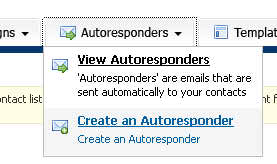
To create an autoresponder, start by moving your mouse over
the "Autoresponders" tab and clicking the "Create
Autoresponder" menu option, like so:

http://www.interspire.com/support/kb/images/EMtutorials/create_autoresponder.jpg

To create an autoresponder, click the "Create
Autoresponder" option under the "Autoresponders" tab.

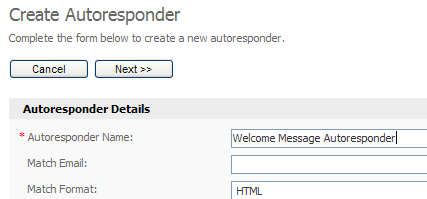
The "Create Autoresponder" page will appear.
Choose the mailing list you want to create the autoresponder for and click the
"Next >>" button. Complete the autoresponder details form. The
only required field is a name for your autoresponder, which is used to identify
the autoresponder in the control panel. This name is not shown to your users.

You can optionally filter the email addresses in your
subscriber list using the other options on the form, but for our example we
will send to everyone on the list. Click the "Next >>" button
when you are done.

http://www.interspire.com/support/kb/images/EMtutorials/autoresponder_2.gif

The only required field is the autoresponder's name field.
All other fields are for filtering the subscriber list, so we can skip those
for now.

When the page loads, complete the form. Pay particular
attention to the "Bounce Email" and "Hours Delayed" fields.
The "bounce email" field is the email address where emails rejected
by your subscribers mail servers will be sent. The "hours delayed"
field tells the scheduling system how many hours after someone subscribes to
your mailing list to send them the autoresponder email. "0" means it
will be sent straight away.

Optionally, complete the rest of the form. If you're unsure
about any of the options just move your mouse over the help tip to learn more.
Click the "Next >>" button to continue.

On this page you can create the content for your
autoresponder email. Enter a subject in the subject field. This is the email
subject line your subscribers will see in their inbox. Enter the content of
your newsletter in the editor too. Use the "Send Preview" option at
the bottom of the page to send yourself a preview of the email before clicking
the "Save And Exit" button.

Congratulations, you've just created your first autoresponder!
Remember, you can create as many autoresponders for each mailing list as you
like, so why not get creative and use autoresponders to your advantage?

Bonus section: Ideas for autoresponders

So how might you use an autoresponder in your business? Here's
a simple idea that's quick and easy to implement. In this example let's assume
you sell poker chips online from your eCommerce website.

Create a new autoresponder that's sent 24 hours after
someone subscribes to your newsletter. In it, include text and images
describing your top selling poker chips and at the end include a link to
"See all Top Selling Products at mypokerchipssite"

One week later schedule another autoresponder to your
subscribers. In it, include links to articles on your web site that teach them
how to improve their poker/roulette/blackjack game. Nothing draws people back
to your web site like free articles do.

Finally, create a new mailing list and autoresponder to be
sent out after 48 hours to those who order from you. Include your customer
support details, including how they can contact you for help, a link to your
knowledge base and any product warranty details they might want to know.

Of course this is just one example, but hopefully it's given
you some new ideas as to how you can use autoresponders to improve your
relationship with your web site visitors/customers.

>What is an Autoresponder?

An Autoresponder is an email that you can set up to be a
stand alone, or one of a series, that will be sent out at a set time after a person
subscribes to your contact list.

For example you can set up an autoresponder  to be sent
immediately (0 hours) after the person signs up to let them know about a
promotion you are having for new users.

 You could then set up one to be sent 72 hours, or 3 days
later see how they felt about your offer.

>Can I add custom fields to my Email subject lines?

Yes you can. You simply need to add the correct place holder
such as '%%First Name%%' or %%Email Address%% in your subject line and they
will be replaced when the email is sent.

>What are the different types of Website Forms and how
do I use them.

There are 4 different types of forms that you can make use
of.

·
Subscription Form

·
Unsubscribe Form

·
Send to Friends Form

·
Modify Details Form

Subscription Form

A subscription form is used to allow visitors to your site
to add themselves to your contact list. It allows you to gather information on
your contacts in the form of any custom fields that you have created and
included in your form.

To use this type of form simply create the form through the
website form creation process, including any custom fields that you wish to
gather information on. When you have finished creating the form you will be
taken back to the Manage Forms page where you will see a link to 'Get HTML'.
Clicking this link will present you with the HTML needed to use for the new
subscription form.

Now you simply need to place this form code on your website.
You can edit this form to make it look as you want so that it will look like
your site. Just be sure to leave the code marked "Do not edit"
intact. From here you simply wait until visitors make use of the form and add
themselves to your mailing list.

Unsubscribe Form

This form is created and used in much the same way as the
subscription form except that you cannot add custom fields to it.

Once it is created and placed on your website you can direct
your contacts or site visitors here so that they can unsubscribe themselves
from your contact list.

If you wish to have your emails contain double opt out, so
that your subscribers do not accidentally remove themselves from your list you
can link to this form rather then using the built in custom filed
%%unsubscribelink%%.

Send to Friends Form

This form is used in a slightly different way. You create
the form using the same process as above but when you wish to use it you need
to include it in your email campaigns in the form of a custom field.

The reason for this is that a unique link is created so that
you can record which contact forwarded the email on and at what time.

You simply need to insert the custom field into your email
campaigns and at the time of sending it will be converted into the link and
sent on to your contacts.

Modify Details Form

Like the Send to Friends from above, you create this form in
the same fashion as all the rest but you include this in your email campaigns
as a custom field.

In the same fashion as the Send to Friends this custom field
will be converted into a unique link so that your contacts can log in and
manage any details that you included in the creation of the form. This may be
which contact lists they are subscribed to, what details are stored for their
custom fields, even their email address.

>I just imported my HTML and do not see any images.
Why?

If you create a new template or email and the images are not
referenced absolutely,  you will need to upload your images using the editor.

>Why attachment option is disabled?

We have disabled attachment feature. Since major ISP like
Yahoo, Hotmail, Gmail and AOL block or defer bulk emails with attachment.

 Avoid sending attachments in Bulk Email. Email attachments
are a common tool for propagating computer viruses.  As a result, some users
are hesitant to open unexpected attachments.  Senders of Bulk Email marketing should consider
posting files to an own hosted website and then providing instructions / link
in the email to download the file.  This provides some measure of authenticity.

>How do I add an anchor to my emails?

To add an anchor to your email highlight the text that you
wish to make the anchor and click the insert anchor button. Name the anchor and
click ok.

Next highlight the text that you wish to make the link and
click the insert link. Choose your anchor from the drop down, click ok, and you
should be done.

>I already have an email template. Can I use this in GetBulkMail?

Yes, if you have an existing email template you'd like to
use then you can simply upload it into GetBulkMail using the Create an Email
Campaign option under Email Campaign menu.

If your template is located on your computer you can select
the option to 'Upload a file from my computer'.  This will upload your template
into GetBulkMail .

>How do I change the look and feel of my website
forms?

When you create the form you will be able to view the HTML
code for the form.

You can then copy that HTML code to an editor where you can
modify this to look how you would like for your individual websites.

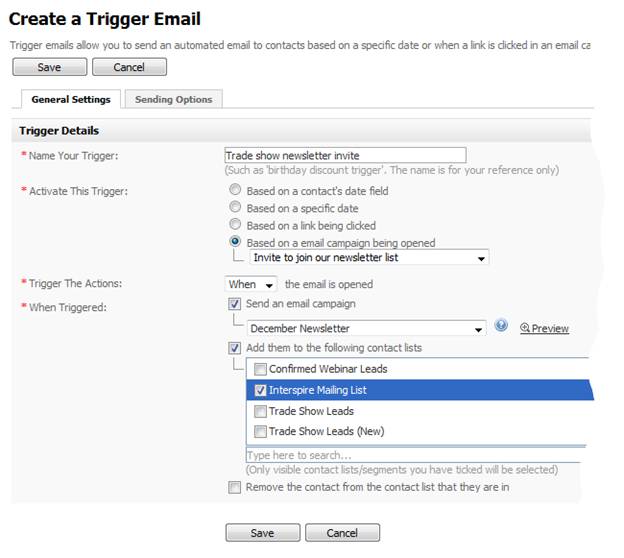
>How to use trigger

If you're not familiar with trigger emails, they are aptly
named. Trigger emails help you send highly personalized, segmented emails
automatically to a recipient based on a specialized event. Common triggers are
birthdays, holidays, news events, or buying history. Also, triggers can be used
to add people to new, segmented lists based on their actions, perhaps clicking
a link in your email or by simply opening the email.

GetBulkMail will make this job easy, with many additional
powerful tools that help automate your sales efforts using triggers. Let's take
a look at some screenshots.

In the screenshot below we can see how easy it is to set up
a trigger email based on a birthday. Why not send a discount coupon with a
special Happy Birthday note? You may also choose to change the "on" to "before"
or "after" and specify a number of hours or days before or after the birthday
to send the email.

http://www.interspire.com/content/content_images/20/iem55-email-open-trigger.png

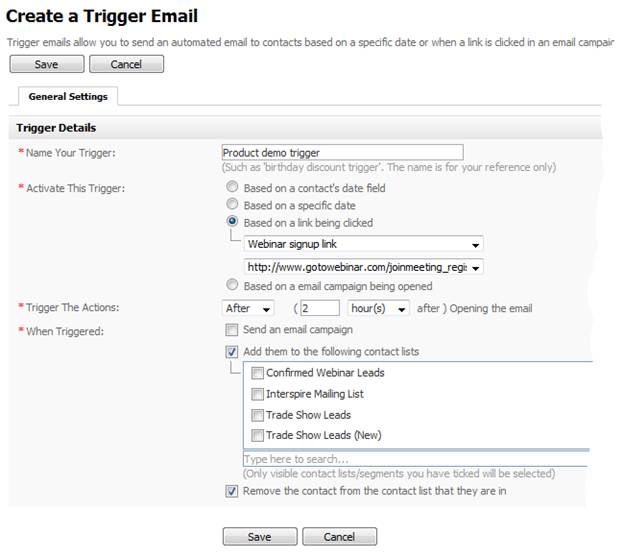
In the final screenshot below we see how we can setup a
trigger that will add a lead to two new contact lists and remove them from the
list they're currently on. In this case, it happens based on the recipient
clicking a link inside an email campaign.

http://www.interspire.com/content/content_images/20/iem55-link-click-trigger.png

It's pretty easy to see how effective mining triggers can be
for your email marketing efforts. Triggers are a phenomenally easy way to
automate basic tasks and generate new leads for your sales people. For example,
if a recipient clicks a link in your email about a new product, you could set
up a trigger to add that person to a new list called "hot leads" for your sales
team.

Triggers are usually more specialized than your regular
email campaigns and that's what makes them so powerful. They can create a real
sense of connection and urgency for your recipient to open, read and respond.

Contact List Management

>How to save my excel file into .CSV?

Your import file must be in comma-separated values format
(or CSV for short) to reduce the chances of errors occurring during import. If
you have your list of email addresses saved as a Microsoft Excel spreadsheet
then it's easy to convert that file to a .CSV file. Here's how

To save an Excel file as a .CSV file.

1) Open Excel and open the file containing your contact
list.

2) On the Excel toolbar, select File > Save As. A dialog
box pops up.

3) Type a new name for the file in the File Name text field.

4) In the "Save as Type" drop-down menu, scroll
down to locate and select CSV (comma delimited).

5) Click Save.

          a) If you see a message that the file type doesn't
support multiple worksheets, click OK

          b) If you get a message "file may contain
features that may not be compatible file type", click Yes to continue.

6) Close the file and exit from Excel.

>How to import contacts from a file?

If you already have a list of contacts in a file on your
computer, you can upload that file into the system and add the contacts to your
new contact list. To start, you will need to export your contact list from your
other mailing program. You should export your contact list into a CSV (comma
separated value) file. A CSV file will contain a list of your contacts details
in a line-by-line format, such as:

user1@site,MALE,Y,20030101

user2@site,FEMALE,N,20031014

user3@site,MALE,N,20020706

Move your mouse over the "Lists" tab and click the
"Import Contacts" option in the left, as shown below:
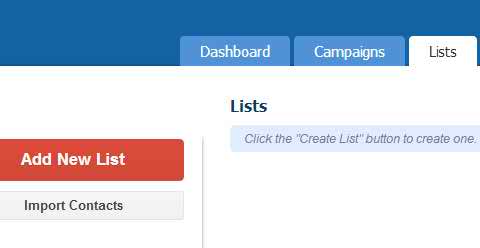
http://mailmarketer.in/support/images/import1.jpg

This will start the "Import Contacts" wizard.
Choose the contact list you want to import contacts to and click the "Next
>>" button.

The example import file above includes three records, and
each record is separated with a new line. Each record contains four fields, and
each field is separated with a comma. The CSV file will typically have a .CSV
or .TXT file extension. Start by clicking on the "Browse…" button
in the form to select your CSV file from your hard drive:
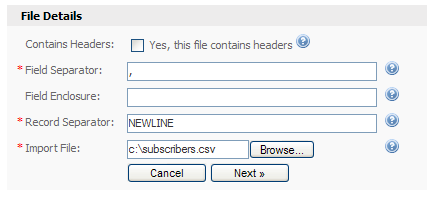
http://mailmarketer.in/support/images/import2.gif

To import contacts from a file, click the
"Browse…" button to choose the file.

If your import file contains a line of headers like this:

EMAIL,SEX,EMPLOYED,DATE

user1@site,MALE,Y,20030101

user2@site,FEMALE,N,20031014

user3@site,MALE,N,20020706…

… make sure you tick the "Yes, this file contains
headers" checkbox. Click the "Next >>" button to proceed
to the next step.

You will now be asked to map the fields from the imported
file to the fields in the system. Simply click the dropdown box next to each
field that was found in the file and match it up to the field in the system.
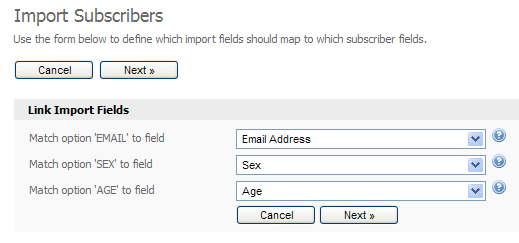
Here's an example for an import file that included "Sex" and
"Age" custom fields:
http://mailmarketer.in/support/images/import3.gif

Click the dropdown next to each imported field to map it to
the appropriate field in the system.

Click the "Next >>" button when you are
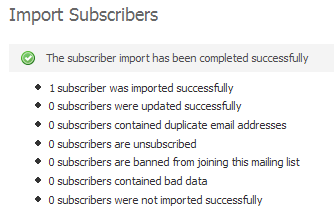
done. Finally, click the "Start Import" button. Your contacts will be
imported one by one and the popup window that appears will show you how many
contacts have been imported and how many remain. You will see a final report
when all contacts have been imported:
http://www.interspire.com/support/kb/images/EMtutorials/agettingstarted_6.gif

The final screen will tell you how many contacts were
imported. It will also tell you if your contact file contained bad data.

>What are custom fields and why/how would I use them?

Custom Fields or Mail Merge Fields are used by you to
personalise your emails to your customers. You can also use these fields to
filter your sends so that only particular contacts receive the email depending
on the details that they have saved for themselves.

How do I create custom fields?

The first step in using custom fields is to have a contact
list created. When you have created this contact list you can then go to the
menu option 'Contact List' and select 'View Custom Field' from there.

This will bring you to a page for viewing, editing and
creating any custom fields you have already created or are planning on
creating. Here you will need to select the 'Create a Custom Field' button.

This will start you through the creation process. You will
have to select the type of custom field you want and name it so that you can
use it in your Email Campaigns and Autoresponders. If you select to make the
field 'Mandatory' your users will not be able to complete the form without
entering these details.

The types of custom fields are:

·
Text Field – Use this to gather small amounts of information
about your contacts. This could be their First Name or Last Name etc. You can
then use this custom field to personalise your emails by opening with something
such as 'Dear %%First Name%%'.

·
Multiline Text Field – This type of custom field is good for
gathering larger amounts of data from your contacts such as having them send
you comments on your products or service. (If you set the website form you
create to 'Emulate a contact form' you will be sent an email with these
comments when any user fills out the form).

·
Numbers Only – Using this type of custom field can be good for
gathering information such as phone numbers.

·
Dropdown List – This type of custom field allows your user to
select only one option from a predefined list of options. You could use this to
ask for your users title such as Mr, Mrs or Miss.

·
Check Box – Check boxes allow your users to select multiple
options. You could use this to request information on what your users favorite
things are such as their favorite style of music. This will then allow you to
filter your email sends to only those users that have selected Rock and those
that have selected Jazz rather then sending irrelevant information to those
users that do not like these genres.

·
Radio Button – You can use this in just the same fashion as the
dropdown list but have it set out differently in your form. It will still only
allow your contact to select one option from a predefined list.

·
Date Field – Using a date field will allow you to gather
information such as Birthdays of your users.

When you have selected your type of custom field and named
it you can move onto the next step. This step will have options such as
'Default Value', 'Field Length', 'Start Date' and so on. The most important of
these is the Default Value. You can use this so that if your contact does not
enter a value but you still wish to use this custom field in your email
campaigns you do not have to worry about emails looking strange.

If you send an email that states 'Dear %%First Name%%,' and
your user has supplied the name John you will send an email that reads 'Dear
John,'. If you have set a Default value of 'Friend' and your contact does not
save his/her name your email will then read 'Dear Friend,' rather then 'Dear
,'.

Viewing and editing your custom fields

To view what details are stored in your contacts custom
fields you have 2 options. The first is to export your contact list and view
the list of contacts as a CSV (Comma Separated Values) file. To do this you
simply have to select 'Contacts->Export Contacts to a File' from the menu.
When you do this you will be given the option to select which contact list you
wish to export and which custom fields associated with that contact list to
include in this export.

The second option is to view the list of contacts through
the 'Contacts->View Contacts' menu. When you have found the contact that you
wish to view/edit the details of simply select the 'Edit' link next to their
email address and you will be shown the information that that particular
contact has saved on themselves.

If this method of editing contact information is too slow
then you can either import the contact list again with updated information,
choosing to update the current information to the imported file, or you can
send a 'Modify Details Form' to your contacts.

Using your Custom Fields in your Email Campaigns and
Autoresponders

When you create your email campaigns and autoresponders you
will see an option, in the WYSIWYG editor, below the WYSIWYG editor and below
the text box for text based email content, that reads 'Insert Custom Field'.
When you select this option you will be presented with a pop up window that
contains a list of all the built in custom fields and then a listing of all the
user created custom fields listed by contact list.

When you decide which custom field that you wish to insert
into your email campaign, click the insert link and it will be placed where the
cursor was located.

This will look similar to %%Custom Field Name%% when you
insert this into your email campaign. When you send your email to your contact
list any details that they have saved for those custom fields will be inserted
into the email in replacement of the %%Custom Field Name%%

Remember that sending a test email campaign will not replace
the custom fields. Your emails will still come through with the custom field
place holders to show what your email would look like.

Another thing that you should make sure to remember is that
custom fields are associated with contact lists. This means that if you send an
email to a contact list that the custom fields are not associated with they
will not be replaced and your email will not look correct. Be sure to use
custom fields for the mailing list that you intend to send it to.

>Can GetBulkMail automatically add an Unsubscribe link
if one isn't included?

Yes, GetBulkMail can be configured to automatically add an
unsubscribe link to every email campaign and autoresponder if it detects that
one isn't available.

>Is there a way to send a single newsletter to
separate contact lists without generating duplicates if individuals are members
of both lists?

Yes there is. When you are sending your email campaign and
are selecting the contact lists that you wish to send to you can simply hold
down the 'CTRL' key and select multiple lists.

GetBulkMail will only send the email once to each user no
matter how many lists they are subscribed to

>How to find unsubscribed contacts

To view the unsubscribed contacts:

Go to Contacts -> Search Contacts in the menu,

Choose "View specific contacts from within the selected
lists below",

Select the list you want and click Next, and

Choose the Activity Status "Unsubscribed" and
click Next.

You should now be presented with all of the unsubscribed
contacts of the lists you selected. You can click 'Edit' for a contact and set
their Activity Status to "Active" again.

There is no way to set the Activity Status of contacts en
masse. Generally there is a very good reason why a contact is labelled as
unsubscribed or bounced, and changing this manually could result in your server
being blacklisted.

>Sending Emails Based on Subscriber Segmenting

Sending and segmenting the campaign

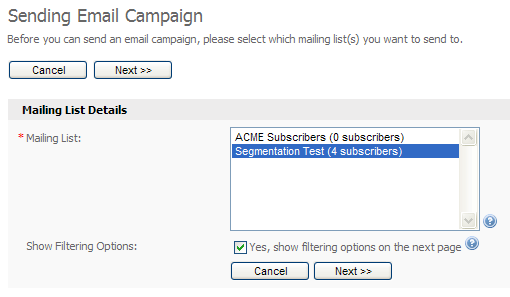
Click the "Send an Email Campaign" option under
the "Email Campaigns" tab at the top of the system. Choose the
mailing list you want to send to, and make sure you tick the "Yes, show
filtering options on the next page" option as this is where we will
segment the list.
http://www.interspire.com/support/kb/images/EMtutorials/segmentation_4.gif

The first step of segmenting and then sending our email
campaign.

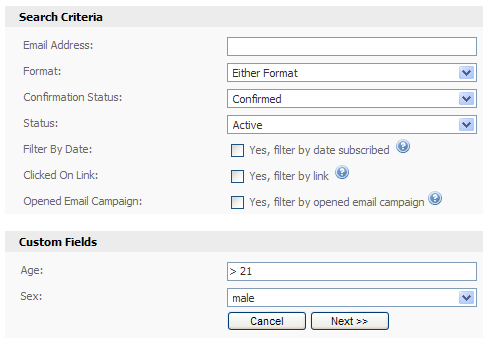
On the next step we can segment and filter our mailing list,
telling the system to only send to subscribers who match certain details. In
our example we only want to send to males over 21, so we fill out the custom
field filtering options. You can use powerful filtering options on number
fields as you can see below.
http://www.interspire.com/support/kb/images/EMtutorials/segmentation_5.gif

Segmenting our subscriber list using filter options.

We have chosen to only send to males over 21. The ">
21" text in the age field takes care of the age segmenting for us
automatically. Click the "Next >>" button to continue and
complete the rest of the sending steps as normal. The email will only be sent
to male subscribers over the age of 21.

>How do I view a list of all Unsubscribed email
accounts?

To view a list of all unsubscribed users you simply select
'Contacts->Search Contacts' from the drop down menu in GetBulkMail.

Once you have done this you need to select the option
'Specific contacts from within the selected lists below' and either select a
specific contact list to see the unsubscribed email accounts for a particular
contact list or '–All Lists–' to view them from all contact lists.

The next page will then give you some filtering options. You
need to change the 'Status' from 'Active' to 'Unsubscribed' and click 'Next'.

will then show you a list of all unsubscribed email accounts
from the list/s that you selected.

>How to create a contact list?

A list is a collection of your contacts details. It includes
their email address and any optional fields such as Name, Age and Sex which you
can create. When sending out an email newsletter, you send it to a list which
means everyone on that list will receive the email.
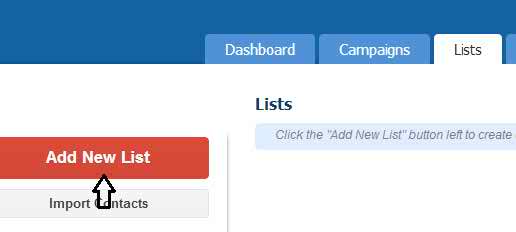
Create List

To create a list, click the "Add New List" option
appear left side under lists page.

Note: You can have multiple list.

>I am trying to import a contact list into GetBulkMail
and am receiving errors when I know the data is correct. What could be causing
this?

One of the most common reasons for your contact lists being
rejected by GetBulkMail as having bad data is because of trailing space
characters on your emails.

GetBulkMail does not know what you want to do with this and
treats it as a bad email.

Simply remove these trailing spaces and you will be able to
import your list.

>How to export active/bounced/unsubscribed contacts to
a file

To export contacts to a file, Go to list page and click
"Exports Contacts" appear in the left side as shown below
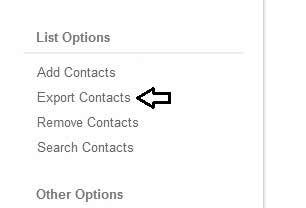
export contacts

Then tick yes, I would like to filter the contacts from the
selected list(s). as shown below and click next to continue
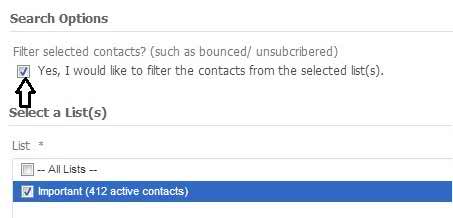
http://mailmarketer.in/support/images/export%20contacts3.jpg

Select status "Active" to export all active
contacts to a file. Select "Bounced" or "Unsubscribed" to
export bounced or unsubscribed contacts respectively. Select "Any
Status" to export all contacts in the list including active, bounced and
unsubscribed.
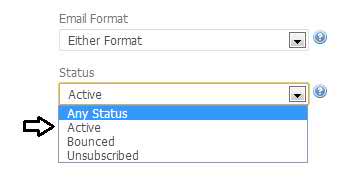
http://mailmarketer.in/support/images/export%20contacts4.jpg

Then click next and select CSV
file format to export contacts to a comma delimated file. Finally click next to
start the export.

>How can I easily change my
contacts from Text to HTML?

You can do this easier from the
'View Contact List' option.

Check the box next to the contact
list that you wish to change and then select the option from the drop down menu
above to 'Change to HTML'.

This will change the whole list
for you.

>How do I re activate a contact that has already been
unsubscribed?

To re activate unsubscribed users simply follow these steps.

 – Click the menu item 'Contacts->Search Contacts'

 – Select the radio option 'Specific contacts from within
the selected lists below'

 – Either select '–All Lists–' to show all unsubscribed
people or select the contact list that you are after for a more refined list.
Click Next

 – On the filtering options page select
'Status->Unsubscribed'

 – Select Next.

That will take you to a page that will display all the
unsubscribed email addresses for your contact list.

To resubscribe them simply select the 'Edit' option
corresponding to their email address and change the 'Status' to 'Active'.


>Is it possible to resend an email to a contact list
but only to the contacts that have joined after I sent it first?

Yes you can. Here's what you do:

1. Select the newsletter and send it as normal.

2. You can then use the "Filter" option and
"Filter by date subscribed" This will give you a date field that you
can select.

3. You select the date that you want to filter by, so it
would be something like: Contacts that have subscribed after 20 Oct 2007.

4. Send the newsletter as per normal. It will only be sent
to those that have subscribed after a particular date.

This will only send the emails to people who have subscribed
after you have sent the email the first time.

>How do I view a list of all Unsubscribed email
accounts?

To view a list of all unsubscribed users you simply select
'Contacts->View Contacts' from the drop down menu in GetBulkMail.

Once you have done this you need to select the option
'Specific contacts from within the selected lists below' and either select a
specific contact list to see the unsubscribed email accounts for a particular
contact list or '–All Lists–' to view them from all contact lists.

The next page will then give you some filtering options. You
need to change the 'Status' from 'Active' to 'Unsubscribed' and click 'Next'.

This will then show you a list of all unsubscribed email
accounts from the list/s that you selected.

>Can GetBulkMail send one email to multiple lists?

Yes. GetBulkMail can send your email to multiple/all lists
at once. It also takes care of making sure duplicate copies of the email are
not sent to the same person if they are subscribed to multiple lists.

When prompted to select your contact list, simply hold down
the CTRL key and select the lists you wish to send to.

>Adding contacts to list one by one?

If you only have a handful of contacts to add to your list,
you can use the "Add Contacts" form to add them in manually.
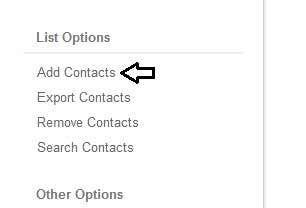
add contacts

To add contacts by typing them in, click the "Add a
Contacts" option appear left side under the lists page.

Choose a list to add contacts to and click the "Next
>>" button. Fill out the form by typing in their email address and
values for any custom fields you've created for the contact list.
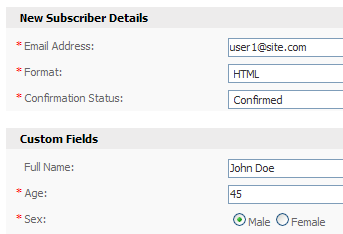
http://www.interspire.com/support/kb/images/EMtutorials/agettingstarted_8.gif

Complete the form to add a contact to the selected contact
list.

When you're done, click "Save" to save the contact
to the contact list and add another contact. Clic "Save And Exit" to
add the contact and return to the main page of the system.

>I am trying to import a contact list into GetBulkMail
but keep getting errors stating that the file could not be loaded.

This generally happens because you are trying to import a
large CSV file. You can break your import file up into smaller parts and just
import more files.

>Can I make multiple copies of my contact lists?

Yes and No. GetBulkMail will allow you to make multiple
copies of a contact list using the Copy function under Contact Lists –>
View Contact Lists. Unfortunately, this feature will only carry over custom
field associations and other details, but will NOT copy over subscriber data.

The proper way to transfer subscriber data across multiple
contact lists is by using the Import/Export from File functions. By default,
export will only move active subscribers, so if you also want unsubscribed/bounced
subscriber data to carry across to your new list, ensure you use the
"Search for contacts to export from my contact list" option, and set
Activity Status to "Any".

>If I send the one email to multiple contact lists and
someone unsubscribe, what contact list are they removed from?

They are unsubscribed from all contact lists.

>How to export opened / unopened contacts to a file

To export opened / unopened contacts to a file, Go to list
page and click "Exports Contacts" appear in the left side as shown below

export contacts

Then tick yes, I would like to filter the contacts from the
selected list(s). as shown below and click next to continue.

http://mailmarketer.in/support/images/export%20contacts3.jpg

'Tick' Yes, filter by opened email campaign and select the
campaign from the drop down as shown below.
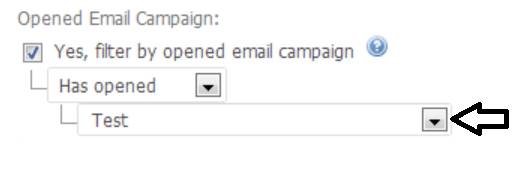
http://mailmarketer.in/support/images/export5.png

'Active' to 'Any Status'

Then click next and select CSV file format to export
contacts to a comma delimated file. Finally click next to start the export.

What is a suppression list?

A suppression list is a list that contains email addresses
that you wish to permanently exclude from future emails you send using our
service.

>How to supress contacts/domain?

1. Click the lists tab

2. On the left side menu click Suppression list

3. Click Supress Email/ Domain

4. Enter the list of email addresses to supress in the text
box as mentioned below image. Seperate each address with a new line. If you
would like to supress whole domain, simple enter @domainame. For example to
suppress every one at Hotmail, enter @hotmail

5. Click save to finish.

>How are unsubscribes handled in GetBulkMail? Are they
deleted or marked as Inactive?

GetBulkMail marks any unsubscribes as inactive, but does not
delete them from your database. This way, if you re-import or add the same
contact, they are not re-subscribed accidentally.

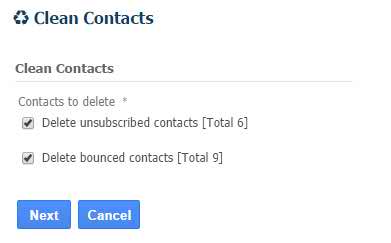
>Delete bounced / unsubscribed contacts from a list

Go to list – Click 'Clean Contacts' option from left side
menu.

To permanently delete Unsubscribed and or Bounced contacts
from your list, start by choosing a list below and click next.
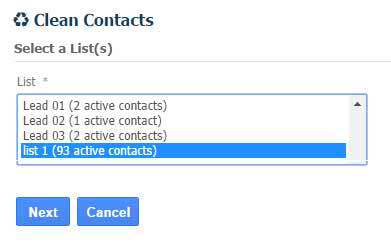
http://mailmarketer.in/support/images/clean_1.jpg

http://mailmarketer.in/support/images/clean_2.jpg

Billing

>Ok, I know, I need an email marketing service, how
should I get started with yours?

·
Choose a plan that suits your email marketing need

·
Sing-up with your details

·
Make the payment either online or offline

·
Your email marketing account is ready in short time

Isn't that
simple enough to get started now? Choose a plan and signup.

>Do you accept any other payment method without
paypal?

Yes. We accept skrill & neteller also. just replay [email protected] how can you
send payment.

Technical

>Do I need to download and install your email
marketing software on my PC?

Well, there is no software to download, its web-based
software, means you can use it from an Internet browser (like Internet Explorer,
Firefox) on any computer with an Internet connection. We know the age of 56K
dialup connection is gone, so cheers J

Deliverability

>How many emails can I send per hour?

By default GetBulkMail send 10000 to 12000 emails per hour.
However, it varies depend upon your campaign size.

>Avoiding the Spam Filters and Other Email Marketing
Tips

One of the major benefits of email marketing is that email
is free, but obviously this is the same reason that spam has become so popular
and so frustrating. With spam comes spam filters and with spam filters comes
the blocking of legitimate email.

In our efforts to help you leverage the power of email
marketing to work for your business we have listed some of the best practices
that you MUST follow to achieve higher response from your email marketing
campaigns.

The right selection of words

Many spam filters work by analyzing the email based on its
content and the words used. Avoid words such as free, discount, offer, game,
win, casino, save and so forth — are very heavy spam trigger keywords. Below
the campaign editor you get an option to check your campaign for spam keywords.

Pay attention to your formatting

When formatting your email, keep it simple and professional.
Make use of small fonts and keep the layout alligned. Do not use image sizes
exceed 100 KB (Maximum width 700 pixel x height 800 pixel). Excessive use of
images without text content will surely add an email being flagged as spam.
Many spam filters consider important email based on its text content.

Try and use a short and simple style sheet rather than using
font tags excessively. Most spam filters don't appreciate a multitude of font
tags and inline formatting.

Sender address

It is highly recommended to use your valid
corporate/business email address for FROM address. No personal email address
such as Gmail, Yahoo, Hotmail etc.

Email volume

We highly recommend you to send smaller and regular
campaigns instead of one large campaign. The volume of email sent at a time
should not exceed 100,000 daily. Breakup your contact list to 100,000 each and
send campaigns one at a time and give time interval between campaigns. Keep
your bounce rate less than 20%.

Give unsubscribe option

Include the unsubscribe link both at top and bottom of
emails. Don't give your recipient a chance to click 'Report Spam'

Signature

Always include a signature at the bottom of your emails.
Include your personal, company and contact details.

>Why is my open rate so low? Open tracking is not
working!

GetBulkMail tracks message opens by inserting an invisible
tracking image in to the bottom of every message that it sends. If you find
that you have a very low open rate, or if you try opening a message and find
that it was not tracked, these are the most common problems:

You are sending a text-only format email, instead of an HTML
format email, or an HTML/Text (MIME) format email. Text-only messages cannot be
tracked, as the tracking relies on an HTML image tag.

You had "open tracking" disabled in your campaign
settings. Try creating a new campaign on a test list, and making sure the
tracking is turned on to test this.

Major ISP Yahoo, Gmail, Hotmail block images by default.
Your subscribers are not clicking "display images" or "download
images" in their email clients. Since the tracking relies on an HTML image
tag, all images must be "displayed" or "turned on" for a
read to be tracked.

>Can we use our own email address for the FROM
address?

Yes, you can and you should J

>I send an email campaign, but some contacts don't
receive it

There could be a number of reasons for this.

1. The contacts are subscribed as Text but you are sending a
HTML email campaign. Check that the email type you are sending matches the
contacts preference.

2. A spam filter is picking up the email and blocking it
from getting to their inbox. Your email campaign may have had link tracking or
open tracking on, which some picky spam filters will use to detect a possible
spam email and block it. If unsure, test your next campaign by turning off link
and / or open tracking.

3. The email being sent is being bounced back for a
particular reason. Check your bounce account for any bounce emails and see if
any match the particular email address that is not getting delivered to.

>What's the difference between hard and soft bounces?

GetBulkMail categorizes your campaign's bounces into 2
types:

1) Soft Bounce: Soft bounces basically mean the email was
sent to the server, processed, but for some reason was returned to us. Common
reasons include: "user over quota," and "server temporarily unavailable."

2) Hard Bounce: A hard bounce basically means we sent your
email, and the recipient's server outright rejected it. Common reasons include:
"Invalid Address", "Account does not exist," and
"domain does not exist."

GetBulkMail process bounce contacts automatically

We'll process bounce backs from your list automatically and
update the status of the contacts as Bounced. You won't have to do a thing.
Please note by default your future campaign will not send to Hard Bounce
addresses. If a soft bounce is noted for a single campaign we have attempted to
send the email at regular intervals for up to 3 days. (We do what we can to
help it try to get through, but we don't want you to look like an automated
spambot either, so this helps keep a healthy balance.) If we get a soft bounce
reported we will record that as 1 bounce. After 3 of these soft bounce reports
we will update as Hard bounce.

>Increase Your Email Open Rate By Improving Your
Subject Lines

Just like a direct sales letter, the subject line of your
email is usually the most important part of getting your readers to actually
read your email. If you have a compelling subject line the chance of your email
improves dramatically.

According to a recent marketingsherpa survey, 40% of
email marketers said testing changes to just their subject line had a high
impact on their return on investment (ROI). 45% said subject line changes
accounted for a medium ROI and only 15% said that testing changes to their
subject line results in a low ROI.

For every email you send you've got room for about 50
characters in your subject line so use them wisely to improve your open rates.
Below are some tips to help improve your subject lines:

·
Test the subject line – Take a look at email campaigns you've
sent in the past. Which subject lines worked the best and gave you the highest
open and conversion rates? You might find that for a particular topic there's a
general trend or subject style that resulted in higher open rates.

·
The subject of importance – Try and put as much important and
relevant information into your subject lines as possible. For example, if
you're sending out an email about a special offer make sure the product name
and details on the offer appear in the subject line in a clear and concise
format such as "$40 off ACME Widget Until – Today Only".

·
Personalize the subject line – If you have details about your
contacts then you can use them in your subject line to get their attention. A
subject line containing the contacts first name can sometimes out-pull one that
doesn't.

·
Avoid spam keywords – Most email servers automatically filter out
any emails that contain spam keywords in their subject line – Words such as
free, stock, ebay, password, mortgage, etc all trigger spam detection software
so keep them out of your subject lines at all times.

·
Trigger curiosity – The best way to improve your open rates is to
pique the interest of your contacts. A compelling headline that entices them to
open and read the contents of your email can do wonders for your conversion rate.
Headlines that trigger curiosity can sometimes work well for example: "Hi
[First Name] – I have a question for you".

·
Make the offer clear – If you're making a special offer to your
contact then be upfront and include it as part of your subject line. People
love bargains and special offers so let them know about it before anything
else.

·
Emphasize the benefits – We use this technique for our
newsletters. We always use the format of "Newsletter – [Benefit]". In
our case, benefit is always the title of an article contained in the
newsletter, such as "Company Newsletter – 10 Tips for Better Subject
Lines". It works every time J

·
Easy identification – Make sure your contacts know the email is
coming from you. Deceptive subject lines can confuse people so always try and
including your company name in the subject line. Also, make sure you set the
"From" attribute of your email to include your name and your
companies name, such as "From: John Smith <john@acme>".

·
Exclaim nothing – Avoid using excessive punctuation at the end of
your subject lines. Google bans punctuation from AdWords ad's for a reason –
too much hype can annoy and confuse people.

>When I send a test email to myself the custom fields
do not get replaced with the correct data.

When you send a preview email to yourself you will simply
see the custom field place holders. This is because at this stage there is no
contact list associated with the email at this point in time. The place holders
simply show you where data will be located.

If you would like to see the data instead of the place
holders you will need to add yourself to the contact list and send an email to
yourself as a test.

>If I schedule an email to go out next week, will it
go out even if my computer is not on/connected to the internet?

Yes. GetBulkMail is hosted on a server. This means that it
is not running off your computer. Your scheduled emails and autoresponders will
continue to go even though you are not logged in.

>What is the difference between a normal sent email
and the preview emails?

GetBulkMail puts together the emails in the same way but
links aren't tracked, open image isn't added, unsubscribe link isn't converted
and the custom fields are not converted.

>Warm Up Your IP Address

If you are sending emails from a new or "cold" IP address,
abrupt spikes in email sending volumes can harm your IP's reputation. To
prevent this, you need to warm your IP address up gradually over time to
establish your IP address as a legitimate email sender among Internet Service
Providers (ISPs). Properly warming up your IP address is a crucial step in
building your email sending reputation and improving delivery performance.

Statistics

>I don't see any open or link click statistics in my
email campaign statistics. What's going on?

When you send an email campaign, make sure to select the
options:

·
Track Opens and

·
Track Clicks.

If you don't have these two options selected when you send
your email campaign, then your email campaign opens and link clicks will not be
tracked.

>Is it possible to track opens/clicks?

When you send emails to users that receive HTML emails you
can select the option to track opens. This will make GetBulkMail receive data
on what users opened what emails and at what time.

The track link clicks can be tracked for both HTML and Text
emails. This will store data on what users clicked what links in what emails at
what time.

These statistics are precise down to the minute.

>Google Analytics integration

What "Google Analytics" integration does is to
track your links, and add "Google Analytics" specific code to the
links so you don't need to add those tracking code manually.

"Google Analytics" itself must already be
integrated on your website in order for the link to be tracked by Google
(http://google/analytics/).

So for example you got a newsletter that have a link to your
website listed here:

– http://somesite/html

– http://somesite/html

– http://somesite/html

What GetBulkMail does when "Google Analytics"
tracking is enabled is to add these variables Google required to the link, so
the link will become:


http://somesite/html?utm_source=MailingList&utm_medium=email&utm_campaign=Generictest

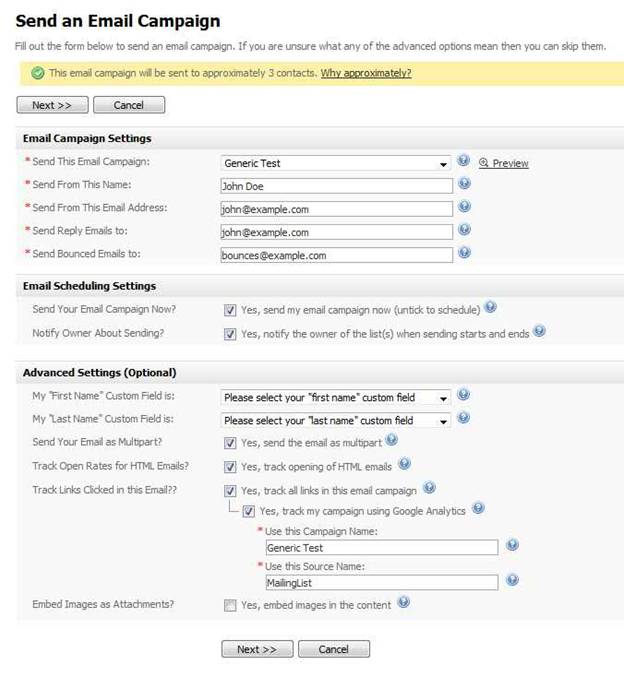
To enable "Google Tracking", you must have
"Link Tracking" enabled. You can then see the "Google
Tracking" option

in the sending page (the page where you confirm your
newsletter sending) under "Link Tracking" option.

(See Screen Shot for more details).

http://mailmarketer.in/support/images/ss_google_analytics_1.JPG

While in "Google Analytics" page itself, you can
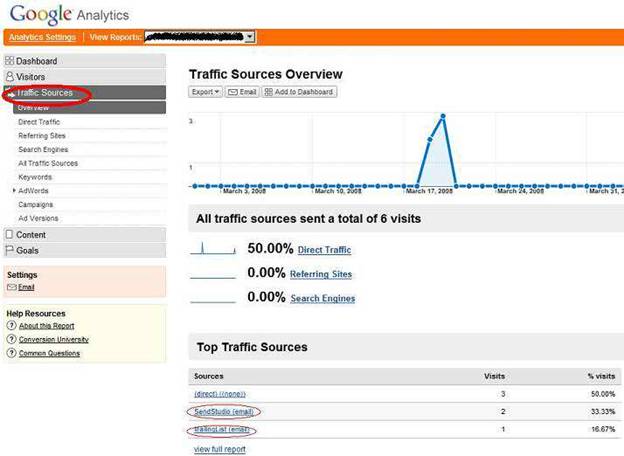
view your campaign stats by going to the "Traffic Sources" (refer to
screen shot below)

http://mailmarketer.in/support/images/ss_google_analytics_2.JPG

Best Practices

Tuesday / Wednesday = Increased Response


Studies conducted by online research analysts have shown that the best days to perform a mail-out to your list are Tuesday and Wednesday, as this is when people are more receptive to communication. This means that they are more likely to read your content and click on links, meaning more sales.


On Mondays, everyone is still recovering from a hectic weekend. On Thursday and Friday, people are already too busy looking forward to the weekend. We've actually experimented with this, and received the best results by sending out emails on Tuesday and  Wednesday.

>Maximizing Click-Thru Rates


Both web pages and emails can contain a lot of text and graphics, and this sometimes makes it harder to get your subscribers to perform a certain task, such as clicking on a link to see your special offers.


Numerous research papers tell us that the majority of Internet users respond better to a plain, bold, blue text link — such as this — as opposed to a banner or button. So, if you're going to include links in your emails, make sure they are bold, blue and underlined. This will mean that more subscribers click through, meaning more conversions/sales for you.

>Always Sign on the Dotted Line

Always include a signature at the bottom of your emails, as it's one of the easiest ways to attract more traffic to your website. This signature should include your personal details, your company details, and an unsubscribe link. You can use your signature to link back to your website, and even to other products. Here's a sample signature:

Regards,

John Doe.

President – Company XYZ.

Visit our website at http://companyxyz

Unsubscribe from this newsletter at http://companyxyz/unsubscribe

>On Time, Every Time

When sending an email to your subscribers, always make sure that it's sent on the same day, at the same time. For example, every Wednesday at 3pm. Your subscribers will come to "expect" your email to arrive in their inbox on the same day at the same time every week, meaning that they want to read your content and are generally more receptive to any special offers or promotions you may include.

© 2026 getbulkmail.com. All rights reserved.

shop giày nữthời trang f5Responsive WordPress Themenha cap 4 nong thongiay cao gotgiay nu 2015mau biet thu deptoc dephouse beautifulgiay the thao nugiay luoi nutạp chí phụ nữhardware resourcesshop giày lườithời trang nam hàn quốcgiày hàn quốcgiày nam 2015shop giày onlineáo sơ mi hàn quốcshop thời trang nam nữdiễn đàn người tiêu dùngdiễn đàn thời tranggiày thể thao nữ hcm